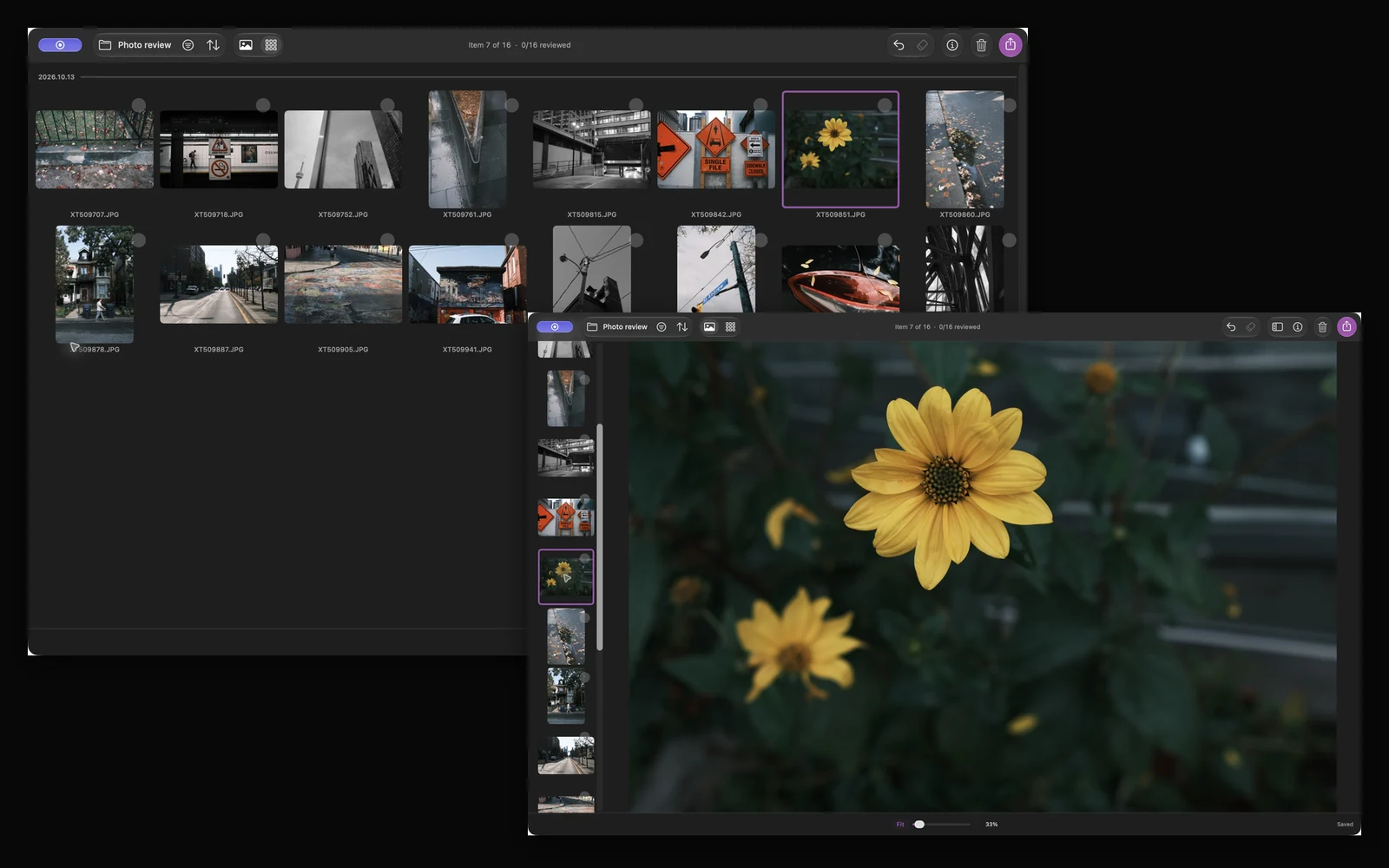
I sometimes want to choose the best photos from a walk and put them in a folder. No editing session, RAW processing, or photo-library import needed
In Louppe, you can open a folder of JPEGs, mark the photos you want, and copy those files to a separate folder. The JPEGs keep their existing appearance; copying doesn't re-encode them
Louppe is my free, open-source photo viewer and sorter for Apple silicon Macs running macOS 14 or later
Start with a folder of JPEG photos
Copy your shoot from the camera card to a folder on your Mac or an external drive, and keep a separate backup. Open that folder in Louppe
This guide starts with ordinary .jpg or .jpeg files in Finder. If your photos are inside an Apple Photos library, export copies to a folder first. Leave the library's internal files alone
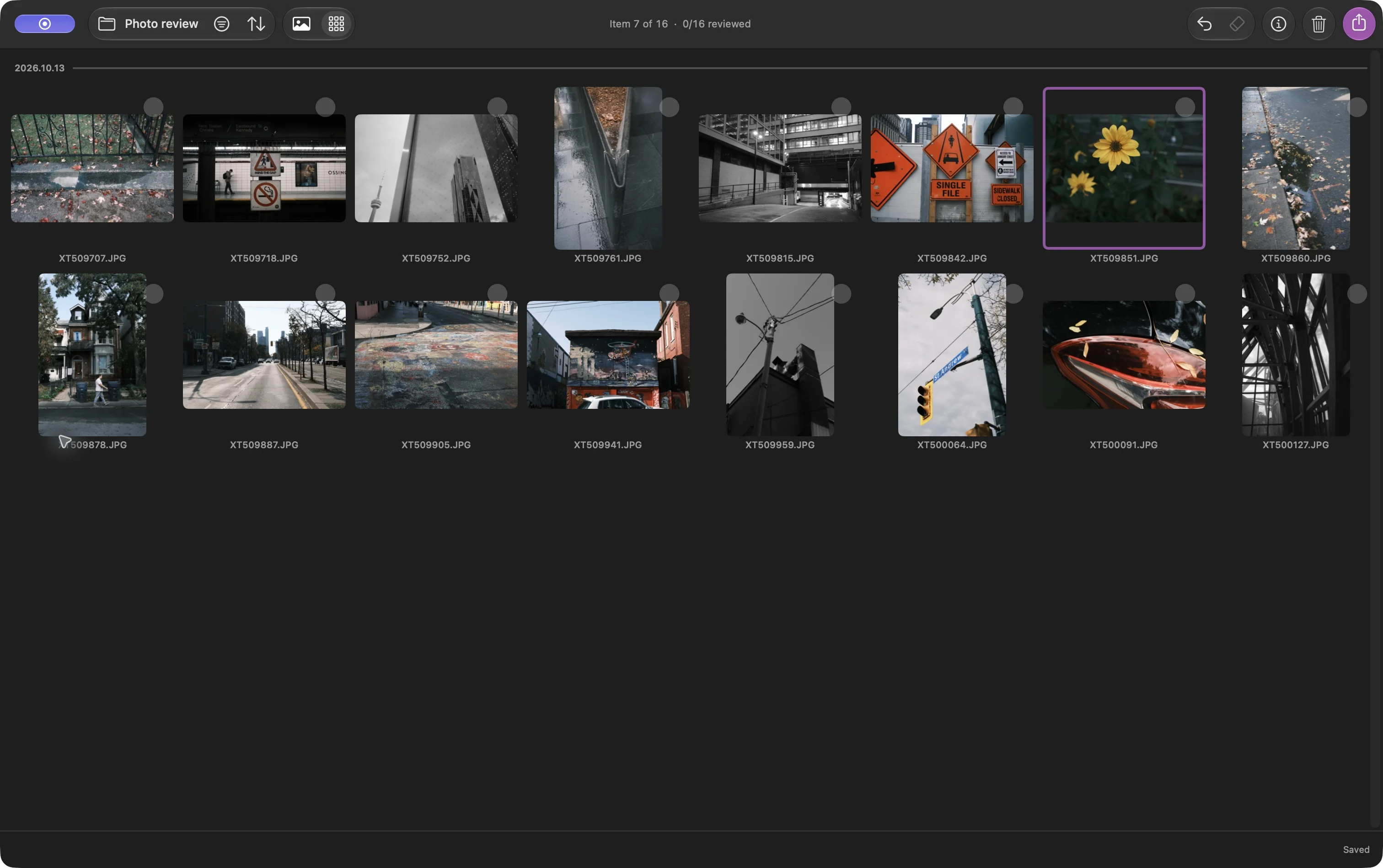
A JPEG-only folder in Grid, captured in Louppe 1.10. The purple outline identifies the current photo; it doesn't mark a keeper
Here, “sort photos” means choosing which pictures to keep. Changing their order by filename or date is a separate choice in Sort
Choose keepers with Yes and No
Open a photo in Gallery and review the shoot one frame at a time. With the default shortcuts, press F for Yes and D for No. Use the arrow keys to revisit a frame
Leave uncertain photos undecided and return to them on a second pass. Stars and color labels are optional; you can finish a whole shoot using only Yes and No
No never trashes a file. It records a decision. Clean Up is a separate command that moves files to macOS Trash
Louppe saves decisions in .louppe_session.json in the opened folder. Wait for the save status before disconnecting a drive, and keep that file if you want to resume this review
Check the shortlist before copying
Filter to Yes and look through the keepers in Grid. Check whether you kept several almost identical frames or missed a photo you still want
Switch back to Gallery for a closer look. S toggles true 100% zoom with the default keys, which helps you inspect focus. Custom shortcuts can differ
Copy the chosen JPEGs to a new folder
Open Export and choose Copy. Check the scope and matching count: an active selection makes Export start with All selected; otherwise it starts with filtered Keepers (Yes). Choose the keeper scope deliberately if that is what you want
Choose a new destination such as October walk keepers, wait for completion, and open the destination in Finder. Check its files and open a few of the copied JPEGs before sharing them
Copy preserves the files, including their resolution and embedded metadata. It doesn't resize them or remove location information. If you need smaller files or stripped metadata, prepare sharing copies in a tool that offers those options
The source folder remains available for another pass. Move, Rename, Organize, and Clean Up change file locations or names through separate commands; none is needed for this workflow
Finish without a RAW editor
You now have an ordinary folder of chosen JPEGs. Open it in another viewer, send selected files, or keep it as your shortlist. Selecting files doesn't change their exposure or color
If you also shoot RAW, use the RAW + JPEG pairing guide. If the next step is editing, follow the before-Lightroom workflow