You can cull photos before importing them into Lightroom: open a folder in Louppe, mark the frames you want, and copy those keepers into a folder for editing. Louppe is a free, open-source photo culler for Apple silicon Macs running macOS 14 or later. Review works offline, without an account or a catalogue import
The same folder-based workflow works with Capture One and darktable. You choose the photographs in Louppe, then take the keepers into your editor
Culling means choosing which photographs to take forward. It can be as simple as separating keepers from accidental frames, missed focus, and near-identical alternatives
Here's a first pass you can use on your next shoot
Start with a folder of photos
Copy the shoot from your memory card to a folder on your Mac, and keep a backup before clearing the card. You can open a card directly in Louppe, but a review decision isn't a backup
Download Louppe, unzip it, and drag Louppe into Applications. Open the app and choose your photo folder, or drop the folder onto its start window
Louppe reviews the files where they are. There's no separate library to import them into
Make one decision per frame
Start in Gallery and move through the shoot with the arrow keys. Press F for Yes when a photograph belongs in your edit, or D for No when it doesn't
For this pass, ask whether the photograph has a reason to stay. Does the expression work? Is the subject in focus? Is there a stronger frame of the same moment? Leave uncertain photographs undecided and come back to them
No is a review decision. It doesn't delete or trash the photograph
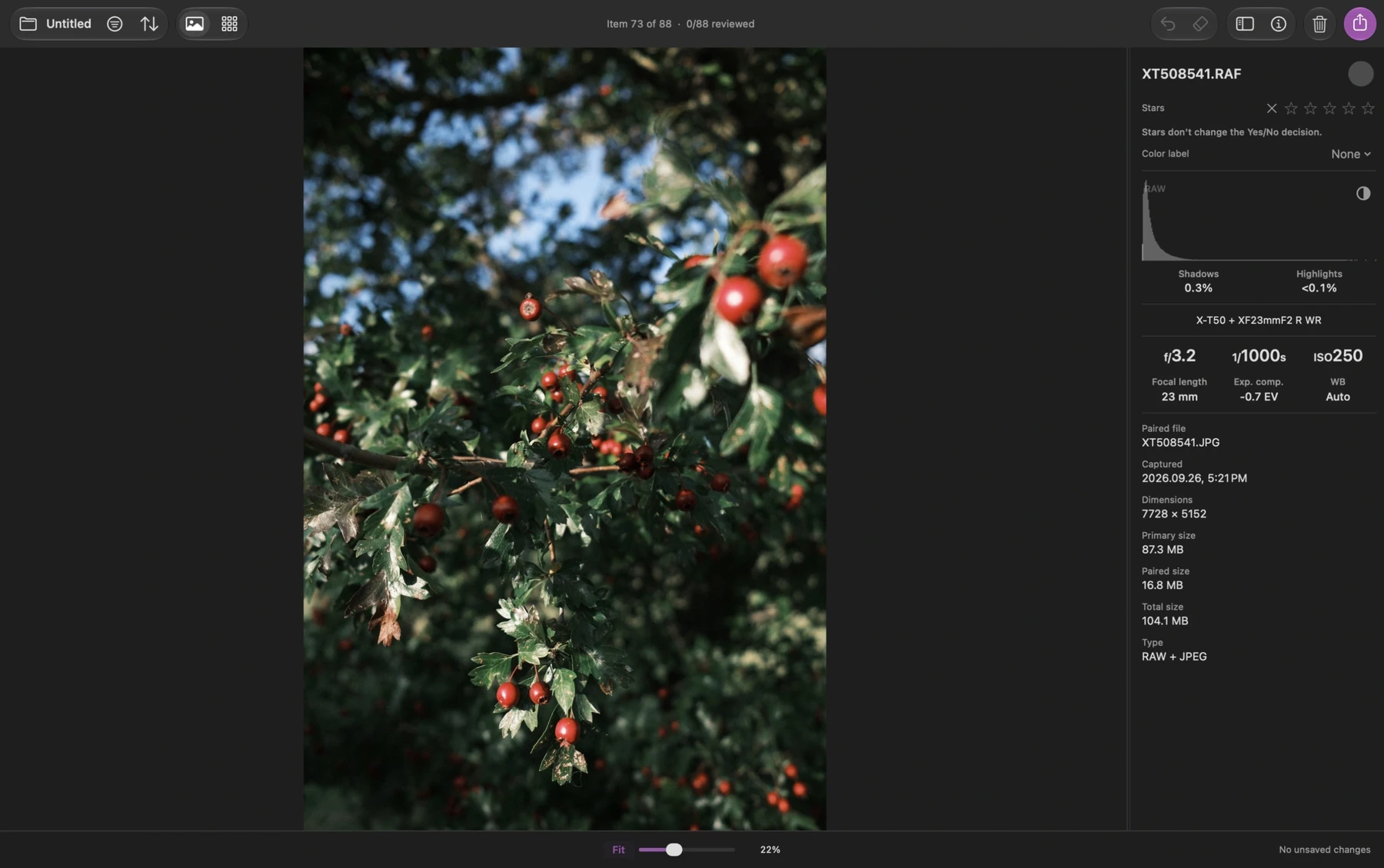
Louppe saves decisions automatically. Wait for Saved in the bottom panel before finishing; reopen the same folder to continue later
Compare similar frames, then check detail
Press G to switch to Grid when you want to see neighbouring photographs together. Compare the composition and timing, then return to Gallery for a closer look
Use S to inspect a photograph at 100%. If you've already zoomed or panned, S first returns to centred 100%; pressing it again returns to Fit. Check the detail that matters to the picture, such as the nearer eye in a portrait
For RAW files, Louppe's Fast display uses previews below 100% and Apple RAW rendering at 100% and above. The RAW rendering may look different from the camera JPEG or Lightroom's rendering, so leave final colour and exposure adjustments for your editor
Stars are optional. Press 1–5 to rate a photograph if you need a second level of selection. Stars and Yes/No decisions are independent: five stars doesn't also mark a photograph Yes
If you shoot both formats, review matching RAW + JPEG pairs together so each shot takes one place in the review
Copy the keepers into a folder for editing
Open Export with E or ⌘E, and keep Copy selected. Choose the scope and decisions you want to include, then check the matching count before choosing a destination
This check matters: with an active selection, Export starts with All selected. Without a selection, it starts with filtered Keepers (Yes). A selection or an active filter can change which photographs are included
Copy into a clearly named folder, such as Shoot name/Keepers. Copy leaves the source files in place. Move transfers originals, so use Copy for this workflow
The result is a folder containing the photographs you've chosen for editing. You can check it in Finder before opening your editor
Import that folder into Lightroom Classic
In Lightroom Classic, choose File → Import Photos And Video, then select the keepers folder as your source
Choose Add if the folder is already where you want those photographs to live. Choose Copy if Lightroom should copy them into another storage location, and check the destination before importing. Adobe's import guide explains these choices
You can now start editing the keepers while the rest of the shoot remains in its source folder
Use Capture One or darktable
In Capture One (C1), choose File → Import Images… and select the keepers folder as your source. Check the storage choice before importing. If you're using a Catalog, you can reference files in their existing location; Capture One's import guide explains the options
darktable is a free, open-source RAW editor with macOS builds, including Apple silicon. It gives you an editing step for a free, open-source photography workflow on Mac
In darktable's lighttable view, use add to library to select the keepers. This adds the existing files to its library without copying or moving them. The darktable import guide explains how this differs from copy & import
For all three editors, this workflow hands over your selection through the files you copied. Copying photographs alone doesn't transfer Louppe's stars or colour labels. Louppe also offers XMP metadata export, which is a separate handoff to check with your editor and file formats
Is a separate culling app useful for you?
If you want every frame in Lightroom's catalogue, reviewing there may already suit you. A separate pass is useful when you want to choose the photographs first, work directly with folders, or review away from an internet connection
Louppe is media-blind: photos, video, audio, and read-only text can share the same review. The same decisions, stars, and colour labels work across a mixed shoot or archive
You also get direct control over local folders: filter and select files, copy or move keepers, rename files, and organise the source folder with a preview of the new hierarchy. Export copies by default
Louppe doesn't edit photographs or choose your keepers automatically. It gives you Gallery, Grid, keyboard decisions, and file export, so you can make the choice yourself
You can watch the short walkthrough before opening a shoot. If something in your workflow doesn't fit, send me a note