
Louppe is a free, open-source photo viewer and sorter for Mac. It can be an ApolloOne alternative when you want to browse photo folders and choose keepers yourself. Open a folder of JPEGs, RAW files, or both, review with the keyboard, and choose what to keep. It works offline, without an account, on macOS 14 or later
These steps use Louppe 1.12. If your App Store version is older, the GitHub release includes these changes
I make Louppe for that first selection after a shoot: look through the photographs, decide what belongs, and keep the files you want. That can be the whole job, even if you never edit a photograph
If that's what you're looking for, here's how Louppe and ApolloOne differ
Louppe vs ApolloOne: what are you replacing?
Both apps can browse existing folders without importing them into a catalogue. The useful question is what you want to do after opening that folder
| Your priority | Louppe | ApolloOne |
|---|---|---|
| Browse folders without a catalogue import | Yes | Yes |
| Cost and source | Free, with MIT-licensed source code | A free edition, with paid editions for more features |
| Choose which photographs to keep | Keyboard Yes/No decisions, optional stars and colour labels, keeper export, and a separate Trash action | Viewing and culling tools within a broader photo workflow |
| Compare photographs | A thumbnail Grid and individual inspection in Gallery | Also offers two-image comparison with synchronised zoom |
| Edit photographs or detailed metadata | Use a separate editor; Louppe exports ratings through XMP sidecars | Includes Quick Edit and EXIF/IPTC editing |
ApolloOne details come from its developer's feature page, checked on 21 October 2026. Features vary by edition. This is a comparison of documented workflows; I haven't measured the two apps' speed against each other
If you depend on ApolloOne's maps, autofocus-point display, or editing tools, check those needs before switching. Louppe's Gallery and Grid won't replace every part of that workflow
Try Louppe on one folder
Start with a backed-up copy of a small shoot. Download Louppe, open the folder, and review in Gallery. You can drop a folder onto the Dock icon or review window, including while another folder is open. Louppe saves your decisions before switching and keeps the window size
Use the default F key for Yes and D for No. Move between photographs with the arrow keys. Leave uncertain frames undecided, or add stars with 1–5 for another pass. Stars and Yes/No are independent
In Settings → Keyboard shortcuts, you can customise review keys or use physical key positions for layouts such as Dvorak. The keys in this guide are the defaults
Marking No doesn't delete or trash a file. Clean Up is a separate action that sends unwanted files to the macOS Trash. Your decisions save automatically so you can reopen the folder and continue
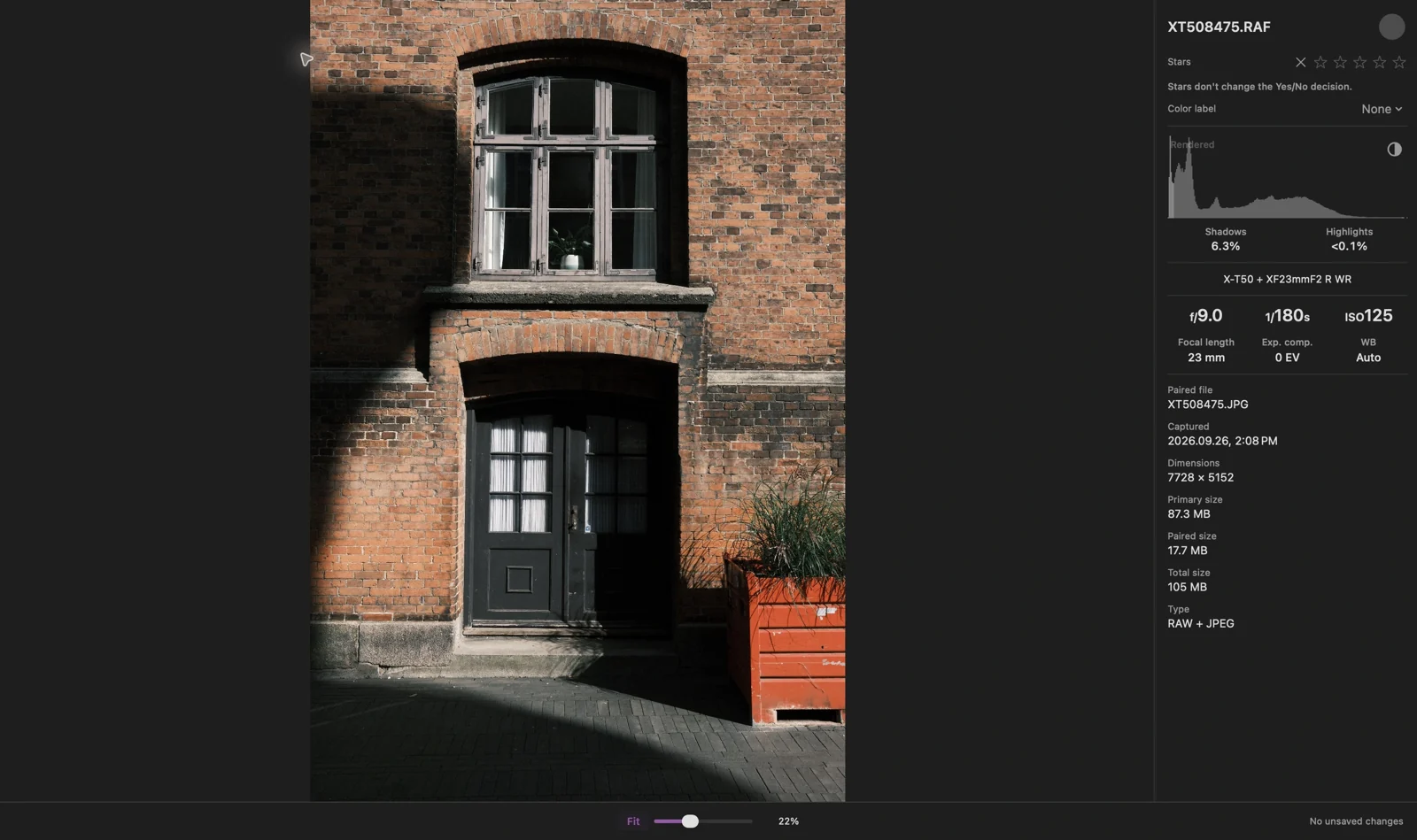
Gallery and camera information, captured in Louppe 1.9
Look through the alternatives, then inspect detail
Press G for Grid to see neighbouring frames together. Return to Gallery and use S to inspect the current photograph at centred 100%; press it again for Fit
If you shoot JPEG only, review those files directly. You don't need RAW files or an editing app. For Fuji JPEGs with recorded film-simulation metadata, Filter → Film simulation lets you review one look from a bracketed series while hidden photographs keep their decisions
In Fit and Phone size, a loading indicator shows when the photo preview is still loading. Wait for it to finish before judging focus
For RAW files, Fast display uses previews below 100% and Apple RAW rendering at 100% and above. That rendering can differ from your camera JPEG or editor. Check the JPEG itself when the camera's finished look matters
If you shoot RAW + JPEG, you can group matching files as one review item, or review them separately. The RAW + JPEG guide explains pairing, separate decisions, and which files are copied
Photos, video, audio, and read-only text can share a review folder. That can be useful when a shoot contains more than still photographs
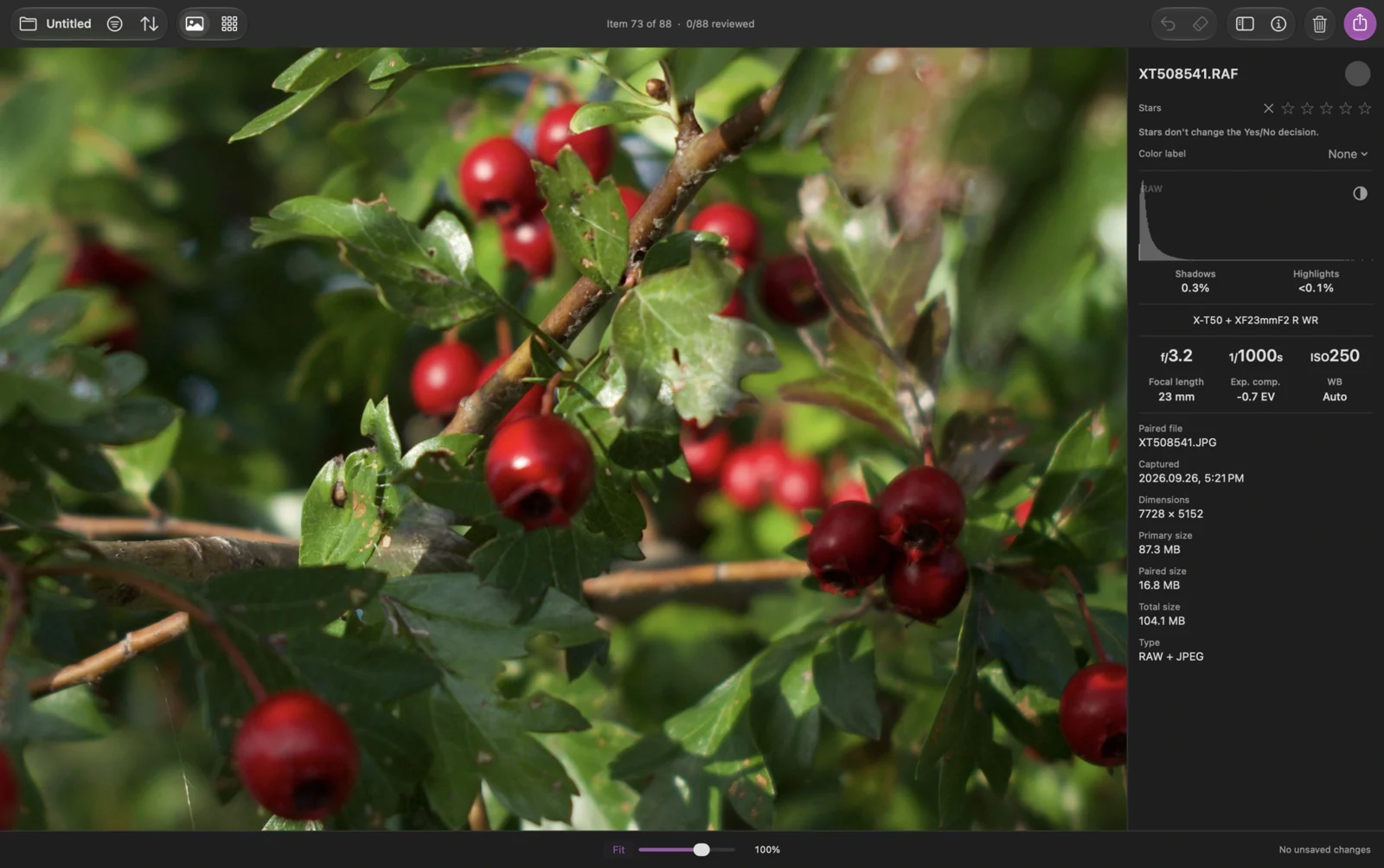
100% detail, captured in Louppe 1.9. The focus check uses the rendered image
Finish your selection
You can finish with your photographs in the same folder, or copy your keepers elsewhere. To remove rejects, review the scope in Clean Up before confirming Trash. ⌘Z can restore the batch during the open session while the files remain in Trash
Open Export with E or ⌘E, keep Copy selected, and check the scope and matching count. With an active selection, Export starts with All selected; otherwise it starts with filtered Keepers (Yes)
Copy the chosen files into a keepers folder. Copy leaves the source files in place; Move transfers originals. Check the destination in Finder before using or sharing the copied files
If editing is your next step, keep Lightroom Classic, Capture One, darktable, or whichever editor already suits you. The guide to culling before Lightroom covers the handoff
Copying photographs alone doesn't transfer stars or colour labels. XMP metadata export is a separate step to check with your editor. Before switching an existing shoot, test a copy of its folder and check which decisions carry over
Is Louppe the right ApolloOne alternative for you?
Try Louppe if you want to make your own selections, work with local folders, and keep the photographs you choose using a free, open-source app
Check the requirements first: Apple silicon and macOS 14 or later. Louppe doesn't support Intel Macs, Windows, or iPad. It doesn't edit photographs or automatically decide which pictures you should keep
You can watch the short walkthrough, then try the same folder in both apps. The useful comparison is whether you can make your selection, return to it, and finish with the files you intended to keep